Clever.com is an education website that helps students, teachers, and staff log in to all their learning apps with one username and password.
- Official Homepage: https://www.clever.com/
- Official Login Page: https://clever.com/login
- Find Your School: Use Clever’s login page to search for your school or district.
Note: Every school district sets up Clever differently. Your login steps, password rules, and app tiles depend entirely on your specific school.
What Is Clever.com?
Clever provides free core platform features for school organizations. Some add-ons and connected apps may cost money. It acts as a digital front door for the classroom. Instead of remembering dozens of passwords for different websites, students and teachers sign in to Clever once. After logging in, users can open the apps assigned to them.
+------------------+     +-------------------+     +------------------+
|  School Database | --> |    Clever.com     | --> |   Learning Apps  |
|  (Student Info)  |     | (Single Sign-On)  |     | (IXL, Khan, etc.)|
+------------------+     +-------------------+     +------------------+
What Clever does
- Single Sign-On (SSO): Lets you use one login to access many approved school applications.
- Personalized Portal: Displays the school-approved apps and resources assigned to your role or account.
- Class Rostering: Secure Sync transfers roster data from an SIS or approved upload to connected apps.
- Clever Badges: Clever Badges are school-issued cards with unique codes that students show to a device camera.
- Add-on Tools: Offers optional tools like Clever IDM for account management and Classroom MFA for security.
What Clever does not do
- It is not an LMS: Clever does not store class assignments, post grades, or host homework like Google Classroom or Canvas.
- It does not replace your school database: Clever can receive school data from an SIS or another approved sync method. It does not create school records on its own.
- Account credentials: Your school controls the login method and account credentials. Do not assume every login method works the same way.
- It cannot grant extra app access: School and district settings, teachers, and app assignments determine which resources appear. Clever cannot add apps that your school has not approved.
How to Log In to Clever
Getting into your account is simple once you know your school’s path.
                       [ Start at clever.com/login ]
                                     |
                         [ Search for Your School ]
                                     |
               +---------------------+---------------------+
               |                                           |
    [ School Uses Badges? ]                    [ School Uses Passwords? ]
               |                                           |
    ( Hold Badge to Camera )                    ( Pick Login Provider )
               |                                 (Google / Microsoft / SAML)
               |                                           |
               +---------------------+---------------------+
                                     |
                       [ Access Clever Portal ]
Student and family login
- Go directly to your school’s custom Clever page if you have the link. If not, open clever.com/login.
- Type your school name or district in the search box.
- Select your exact school from the drop-down list.
- Choose your school’s login method (such as “Log in with Google” or “Log in with Active Directory”).
- Enter your school email and password. If your school enables Badges, follow the Badge instructions shown on your Portal login page.
- Click any app icon on your Portal dashboard to start working.
Important: Use the school account your district requires. A personal account may not match your Clever account.
Teacher and staff login
Teachers sign in using the same school picker path at clever.com/login. Districts may use Google, Microsoft, another identity provider, or synced Clever credentials. Teachers may see teacher tools, resources, analytics, or student support features enabled by their school.
Administrator login
Authorized administrators can manage syncs, apps, analytics, and permissions based on their assigned rights.
How to find the correct school
Many schools across the country share the exact same name. For example, there are dozens of Lincoln Elementary schools. Check the school and district details before selecting a result.
What Is the Clever Portal?
The Clever Portal is a personalized place to access school-approved apps and resources.
What students see
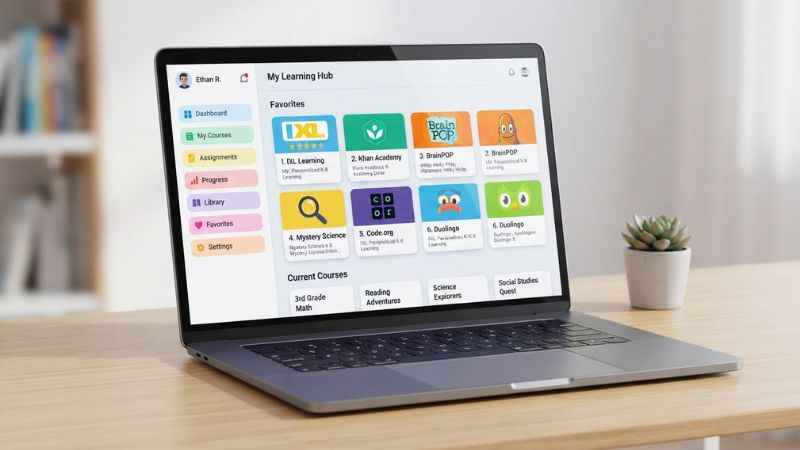
- App Tiles: Large buttons for tools like IXL, i-Ready, BrainPOP, and Khan Academy.
- Favorites: A top section where students can pin their most-used programs.
- Teacher Pages: Special sections created by teachers with links for specific assignments.
- Category Tabs: Schools can organize resources into categories, such as subjects or school services.
What teachers see
Teachers see all their assigned apps plus special tools for class management:
- Custom Teacher Pages: Teachers can build custom pages, organize links, and share specific apps with their classes.
- Class Analytics: Teachers may use Class Analytics to view student engagement with supported edtech resources.
- Backup Login Codes: Authorized teachers or administrators may generate six-digit backup codes that expire after 15 minutes.
- Clever Library: Clever Library helps teachers discover and add approved learning resources.
Why Portals look different
Portal content and layout can differ by school, role, permissions, and assigned resources. Your role, school, grade, classes, permissions, and district settings can affect what you see.
Clever SSO, Rostering, and Secure Sync Explained
Clever works behind the scenes to handle two major job roles: logging you in and setting up your classes.
Single sign-on
Single sign-on (SSO) means you only prove who you are one time. Clever uses supported SSO methods and integrations to connect users with approved apps. SSO can reduce the need to enter separate app passwords, but the exact flow depends on the app and district.
Rostering
Rostering is the process of building class lists inside software. In the past, teachers had to type every student’s name into every website manually. Secure Sync automates much of the roster transfer and account update process.
How the workflow operates
- School Database: Your school enters enrollment changes in its main database (SIS).
- Clever Sync: Clever supports several sync methods, including direct SIS connections, SFTP, and OneRoster formats. Connected apps often update on a regular sync schedule, commonly nightly.
- Sharing Rules: District leaders choose which schools, grades, or classes get access to each app.
- App Access: Connected apps update when their configured sync runs. Many updates are typically processed nightly.
- Student Login: The student logs in to Clever and finds their new class apps ready to use.
Provisioning versus authentication
It helps to understand how these two jobs differ:
| Feature | What Question It Answers | What It Does |
| Rostering (Provisioning) | “Which students belong in this class?” | Rostering sends user and class data so connected apps can create or update accounts and classes. |
| Single Sign-On (Authentication) | “Is this person allowed to sign in right now?” | Verifies your identity and opens your apps safely without extra passwords. |
| Clever Portal | “Where do I find my stuff?” | Displays a clean, organized screen filled with all your approved app icons. |
Clever Badges and Other Login Methods
Clever offers several ways to log in so that students of all ages can access their work easily.
+-----------------------------------------------------------------------+
|                         CLEVER LOGIN METHODS                          |
+---------------------------+-------------------------------------------+
| Clever Badges             | School-issued card with a unique code.    |
| Google Account            | Log in using school Google credentials.   |
| Microsoft Entra ID        | Log in using school Microsoft account.    |
| Clever Passwords          | Simple username and password setup.       |
| Backup Login Codes        | Temporary 6-digit backup code generated   |
|                           | by authorized school staff. It expires    |
|                           | after 15 minutes and can be used once.    |
+---------------------------+-------------------------------------------+
How Clever Badges work
A Clever Badge is a school-issued card with a unique code used for Badge login. Clever Badges are designed to make login easier for students who may struggle with typing passwords.
To use a Badge:
- Open your device camera on the Clever login screen.
- Hold the paper Badge up to the camera.
- After a successful Badge scan, Clever signs the user into the Portal.
Note: Use the Badge login screen and follow your school’s instructions.
Google, Microsoft, and Clever Passwords
Students may use school credentials, Badges, PINs, or another method chosen by the district:
- Log in with Google: Uses your school-issued Google Workspace for Education email.
- Log in with Microsoft: Uses Active Directory or Microsoft Entra ID details.
- Clever Username and Password: A direct login method managed by your school district.
Accessibility and age considerations
Badges make logging in fast for early grades. However, a district may require a PIN with a Badge as an extra security step. Login methods vary by district, student group, and security policy.
Clever Login Troubleshooting
When a login fails, you can usually spot the problem quickly by checking the error screen.
| Symptom | Likely Cause | First Action | Who Can Fix This? |
| School not listed | Misspelled name or wrong organization. | Search using your full district name or check your school website for a direct link. | Teacher or school help desk |
| Invalid username or password | Typing error or using a personal account. | Make sure you are using your official school email, not a personal Gmail address. | Teacher or school IT |
| Google account error | The email is not connected to Clever. | Ask your IT team if your school email is linked to the Clever platform. | District IT administrator |
| Badge will not scan | Dim lighting, camera blocked, or smudged paper. | For Badge login, check camera permission, browser support, and the device’s camera. | Classroom teacher |
| Missing application tile | App is not assigned to your class. | Ask your teacher to confirm if the app was shared with your grade level. | Teacher or Clever admin |
| App opens but shows wrong class | Roster sync delay. | Ask the district or app administrator to check the latest sync and roster data. | District IT or app support |
| Works at school, fails at home | Home network or device rules. | For Badge login, check camera permission, browser support, and the device’s camera. | School help desk |
Backup login codes
Authorized staff can generate a six-digit backup code that expires after 15 minutes. The code gives temporary access and expires after 15 minutes.
Who controls Clever credentials?
Your school controls your account and login method. Clever’s handling of credentials depends on that setup. Contact your school or district for password help. Reset options depend on your setup.
When the problem is the app, not Clever
Sometimes you can log into Clever fine, but a specific app like IXL or BrainPOP fails to open. If one app fails, ask the school or app provider to check its access, account, license, and service status.
Clever for Teachers, Families, and Schools
Clever supports everyone in the school community with targeted tools.
For students and families
Families can help students work from home on computers, tablets, or iPads. Some districts enable family features, which may include resources or other school-approved tools. Always log out when finished if siblings share the same computer.
For teachers
Teachers save valuable class time by eliminating password confusion. With Teacher Pages, educators can curate custom web links, organize apps by subject, and teachers may have Class Analytics for viewing student engagement with edtech resources. Teachers can browse Clever Library to discover approved learning resources.
For districts and school IT teams
District technology teams can use Clever for rostering, SSO, and optional identity tools. Districts can use Clever for provisioning and SSO. Optional MFA tools add another security layer. Administrators can use available sync reports, analytics, and audit tools.
Clever Pricing and Free Features
Clever uses a simple business model that keeps core features free for school districts.
| Product Area | What It Includes | Cost Structure |
| Core Clever Platform | Clever Portal, Single Sign-On (SSO), Secure Sync rostering, Clever Badges, Analytics, and basic support. | Clever says its core platform is free for school organizations in the markets covered by its pricing terms. |
| Clever IDM | Automated account management for Google Workspace, Active Directory, and Microsoft Entra ID. | Clever IDM is a paid add-on. Contact Clever for current pricing. |
| Classroom MFA | Multi-factor authentication tailored for school environments and young students. | Classroom MFA is a paid add-on. Check Clever’s current App Store listing for the displayed price and terms. |
| App Provider Services | App provider fees depend on the provider’s agreement and current terms. | Some app-provider services or partner arrangements may involve fees. Confirm terms with Clever. |
Is Clever Safe for Students?
Data privacy is a top concern for parents and educators. Clever builds strict security controls into its platform to protect student data.
Data control
Clever’s agreements generally say that schools retain control of Student Data. Clever only receives data that the district explicitly permits. Administrators can use sharing settings to control which approved data fields an app receives.
Privacy and advertising
Clever follows strict privacy standards:
- No Selling Data: Clever says it does not sell Student Data or use Student Data for targeted advertising.
- No Targeted Ads: Clever says Student Data is not used for targeted advertising.
- Third-Party Policies: While Clever protects its platform, each connected application operates under its own separate privacy policy.
Privacy frameworks
Clever describes its privacy practices under FERPA, COPPA, and other applicable rules and agreements:
- FERPA (Family Educational Rights and Privacy Act): Protects the privacy of student education records.
- COPPA (Children’s Online Privacy Protection Act): COPPA sets privacy rules for certain online services that collect information from children under 13.
Security controls
Clever describes encryption, access controls, and other security measures in its Trust Center. Schools can add Classroom MFA for supported Clever-based login flows.
Clever Compared With an LMS and Alternatives
Many people confuse Clever with Learning Management Systems or rival identity providers.
Clever versus Google Classroom, Canvas, and Schoology
Clever is not a Learning Management System (LMS). It works alongside these platforms to handle initial logins and account setup.
| Feature | Clever.com | Learning Management Systems (Canvas, Schoology, Google Classroom) |
| Primary Goal | Single sign-on, app launcher, and class rostering. | Coursework, assignments, quizzes, and digital grading. |
| Main Interface | Grid of app icons and quick links. | Class streams, assignment calendars, gradebooks, and discussions. |
| Key Benefit | Saves time logging in to multiple platforms. | Organizes daily instructional content and student submissions. |
Clever versus ClassLink
Clever and ClassLink are both used for school identity, app access, and rostering. Compare their current features and pricing directly.
- Clever: Clever says its core platform is free for school organizations, featuring an intuitive dashboard, popular Badges for early learners, and streamlined rostering integrations.
- ClassLink: ClassLink is an alternative school identity and access platform. Compare current features and pricing directly.
Frequently Asked Questions About Clever.com
Is Clever.com the same as Clever Portal?
No. Clever.com is the main company website and general entry point. The Clever Portal is the personalized dashboard users see after selecting their school and logging in.
Can parents log in to Clever?
Some districts offer family features through Clever. Ask your school whether parent access is enabled.
Can I use Clever at home?
Home access depends on the district, device, browser, login method, and connected app. Use the login method your school provides, such as school credentials or a Clever Badge.
Does Clever work with Google Classroom?
A district may add Google Classroom or another Google resource to the Portal. Clever can connect with Google services through supported identity, rostering, and integration tools.
What if my school is not listed in the picker?
Check your school or district website for a direct Clever link. If you still cannot find it, contact your teacher or school IT department to verify your district’s exact setup name.
Can Clever reset my password?
Password recovery depends on your school’s setup. Contact your teacher or school technology help desk.
Why is an app missing from my Portal?
Applications are assigned by your school district or teacher. If an app tile is missing, your teacher may need to share it with your class section, or your district may not license that program.
What is Clever IDM?
Clever IDM can help manage accounts across supported Google, Microsoft, and Active Directory systems.
Official Clever Links and Support
Use these official links to navigate to the correct Clever resources safely:
- Official Portal Login: https://clever.com/login
- Clever Homepage: https://www.clever.com/
- Clever Support Center: https://support.clever.com/
- Clever Trust Center: https://www.clever.com/trust
- Clever Pricing Information: https://www.clever.com/pricing
You May Also Like:
How to Create a Budget with GoMyFinance.com
DecoratorAdvice.com: What It Is, What It Covers, and How to Use It to Decorate Your Home

Joseph Quinn is the founder and editor of Punspa, a technology-focused website covering technology, website reviews, internet terms, and other things worth figuring out online. He writes and edits the site’s technology and web content, with a focus on clear, useful explanations. He also enjoys humor and wordplay, which occasionally leads him to write a pun-related article just for the fun of it.