Quick Access: Go directly to the Microsoft My Apps portal. You typically sign in using an organizational work or school account.
If you are trying to reach a login page for school or work, [myapps] may refer to the Microsoft My Apps portal. However, the term is ambiguous, as some schools and companies use other systems like ClassLink or Okta. If your sign-in page looks different or asks for a personal account, check the website address provided by your school or employer.
What Is Microsoft My Apps?
Microsoft My Apps is a web portal that shows applications made visible and assigned to you by your organization, subject to administrator configuration and Microsoft’s current portal limits. Instead of remembering different web addresses, you log in to view your application dashboard. From this dashboard, you can select an available application tile to launch it, although additional authentication or a browser extension may be required for some apps.
       +-------------------------------------------------------+
       |               Microsoft My Apps Portal                |
       |                (myapps.microsoft.com)                  |
       +-------------------------------------------------------+
                                   |
         +-------------------------+-------------------------+
         |                         |                         |
         v                         v                         v
+-----------------+       +-----------------+       +-----------------+
|   Work Email    |       | Human Resources |       |  Custom Tools   |
|   (Outlook)     |       |    (Workday)    |       |   (Internal)    |
+-----------------+       +-----------------+       +-----------------+
Microsoft My Apps is the user-facing portal for applications made available through Microsoft Entra ID (formerly known as Azure Active Directory or Azure AD). Microsoft Entra ID provides identity and access management, including authentication, authorization, application assignments, and policy controls. Users do not need an individual Azure subscription or Microsoft 365 subscription merely to use the My Apps portal.
The visible tiles on your page depend on application visibility, user or group assignment, licensing where applicable, policies, and your organization’s configuration.
My Apps versus Microsoft 365 and My Account
Microsoft provides several web portals for work and school users. Each page serves a clear purpose:
| Portal Name | Main Purpose | Web Address |
| Microsoft My Apps | Launch visible and assigned work or school applications. | myapps.microsoft.com |
| Microsoft 365 | Use Microsoft productivity tools like Word, Excel, and Teams. | microsoft365.com |
| My Account | Manage account and security settings, such as security information, password-reset options, and, where available, session or device information. | myaccount.microsoft.com |
How to Sign In to MyApps
To access your applications, follow these simple steps:
- Open your web browser and go directly to the Microsoft My Apps portal.
- Enter your organization account and follow the Microsoft sign-in prompts. If Microsoft asks which account type you are using, select Work or school account.
- Type your account password.
- Complete the verification method configured by your organization, such as Microsoft Authenticator, SMS, a security key, or another approved method.
- Click the tile for the application you want to open.
[Go to myapps.microsoft.com] ➔ [Enter Work Email] ➔ [Enter Password] ➔ [Approve Verification] ➔ [Click App Tile]
The My Apps Login URL
Always verify the domain in your web browser before entering credentials. The standard portal address is:
$$\text{[https://myapps.microsoft.com](https://myapps.microsoft.com)}$$
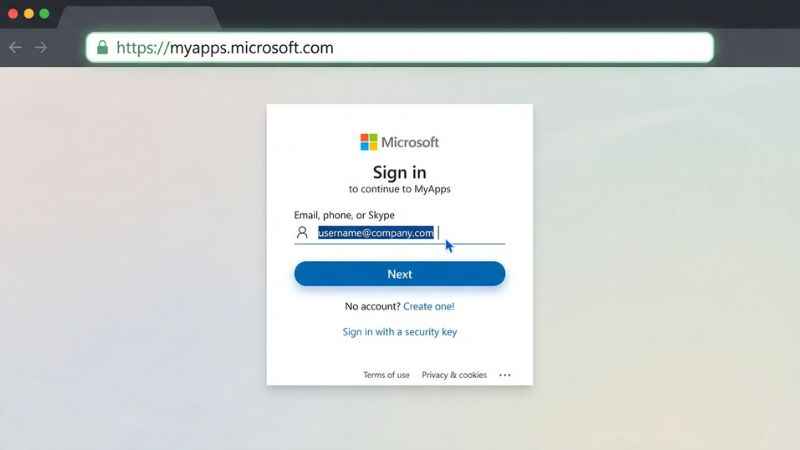
Microsoft documentation also references myapplications.microsoft.com for certain tenant-specific access links. Organizations may use a customized My Apps URL or a tenant/domain-specific URL supplied by an administrator (for example, [myapps.microsoft.com/yourcompany.com](https://myapps.microsoft.com/yourcompany.com)). A customized or tenant-specific URL can help direct the sign-in flow to the correct organization, though users may still need to select or enter the correct account.
Work or School Account versus Personal Microsoft Account
Access normally requires an organizational account with assigned access, but personal Microsoft accounts can appear in guest or cross-tenant scenarios. A personal account alone does not normally provide access to an organization’s assigned applications.
  Personal Account (e.g., @outlook.com) ──► [ My Apps Portal ] ──► Depends on Guest Access / Tenant Policy
Work/School Account (e.g., @school.edu) ──► [ My Apps Portal ] ──► Granted per Assignment & Policies
If you see an error stating that your account does not exist or cannot be found, it may indicate the wrong account or tenant, an account-provisioning issue, or an unsupported account type.
Using My Apps on a Phone
The My Apps portal is accessed through a browser. Microsoft supports access through current browsers such as Edge, Safari, and Chrome, although browser and feature support can vary. Some password-based SSO scenarios may require the My Apps Secure Sign-in Extension or a browser supported by your organization.
What You Can Do in the My Apps Portal
The portal gives you several tools to organize your daily software needs:
- Launch Assigned Apps: Select any tile to launch the configured application. Single sign-on (SSO) may avoid another sign-in, but some applications require additional credentials, consent, MFA, or an extension.
- Search for Apps: Use the search box to find applications if you have many tiles.
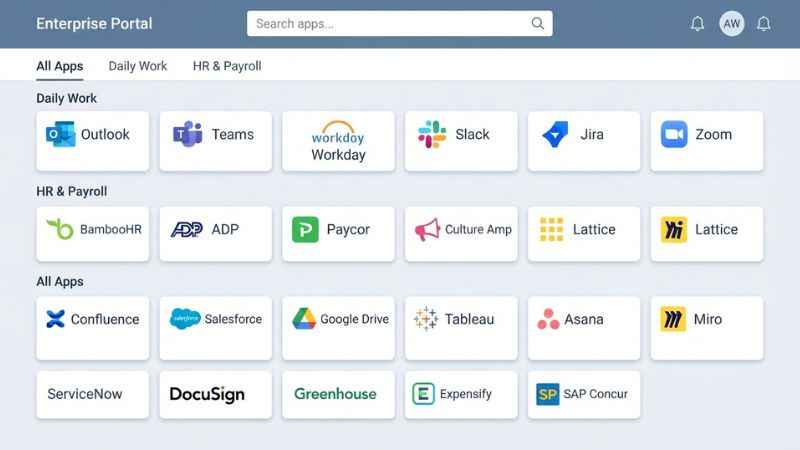
- Organize Collections: Create personal collections to group applications into separate tabs or sections depending on the current interface.
- Hide or Restore Apps: Hide unused software tiles from your main view to clean up your page, or restore hidden applications.
- Add Self-Service Apps: Discover or request applications configured for self-service if your organization allows it.
+-------------------------------------------------------------------------+
| [Search Apps...         ]                            [My Profile Icon]  |
+-------------------------------------------------------------------------+
|  Collections: [All Apps]  [Daily Work]  [HR & Payroll]  [+ New Tab]     |
+-------------------------------------------------------------------------+
|  +--------------+   +--------------+   +--------------+                 |
|  |   Outlook    |   |    Teams     |   |   Workday    |                 |
|  +--------------+   +--------------+   +--------------+                 |
+-------------------------------------------------------------------------+
Launch an Assigned App
My Apps supports several SSO mechanisms. When you select a tile, it opens the application; some apps use tokens or federation, while password-based SSO applications use a separate mechanism and may require the My Apps Secure Sign-in Extension.
Add a Self-Service Application
If enabled by your IT department, you can request or add eligible self-service tools yourself:
- On the Apps page, select Add self-service apps.
- Search for and select the tool you need.
- Select Add.
Note: The Add control appears only for eligible self-service applications, and administrator approval or group-owner action may be required before the tile appears.
Organize Collections and Restore Hidden Apps
If your dashboard feels crowded, group your tools into collections. To manage collections or restore hidden apps:
- Open
myapps.microsoft.com. - Open the Apps collection, select Edit, choose + Add apps, select the hidden application, and follow the on-screen instructions to add it back. Exact labels may vary by portal version.
Why an App Is Missing or Will Not Open
If you cannot find an application or the tile fails to launch, use this quick checklist:
| Symptom | Likely Cause | Best Next Action |
| App is missing from dashboard | It is hidden, in another collection, unassigned, restricted by policy/licensing, or exceeds portal limits. | Search collections, check hidden apps via Apps > Edit > Add apps, or contact your help desk/admin. |
| Self-service option is missing | Self-service access is disabled by your administrator. | Contact your internal help desk or administrator to request software. |
| App opens but shows an error | Caused by the application, its SSO configuration, permissions, credentials, browser, or policies. | Test the application’s direct URL to check if the issue is portal-specific, and contact IT or the app owner. |
| App disappears after job change | Access policy, licensing, or group membership may have changed after a role or job change. | Ask your IT administrator to verify your Microsoft Entra assignments. |
Who Can Add or Grant an Application?
Access may be granted by a Microsoft Entra administrator, delegated group owner, application owner, or through an approved self-service workflow, depending on tenant configuration.
MyApps Login and Loading Problems
If the portal fails to load or shows an error, follow this step-by-step diagnostic order:
[1. Verify Web Address] ──► [2. Check Account Type] ──► [3. Clear Site Cookies]
                                                                 │
[6. Contact Help Desk]  ◄── [5. Enable JavaScript]   ◄── [4. Test Private Window]
- Confirm the URL: Ensure you are accessing the correct web address, such as
[https://myapps.microsoft.com](https://myapps.microsoft.com)or your organization’s custom URL. - Check your account: Verify whether you are using your work/school account or an approved guest identity.
- Clear relevant site data: Clear relevant cookies or site data for the portal, or restart your browser.
- Test a private window: Open an Incognito or InPrivate browser tab as an optional diagnostic test (note that private windows may disable extensions needed for password-based SSO).
- Enable JavaScript: JavaScript must be enabled for the My Apps application to function.
- Contact your help desk: Use your organization’s self-service password-reset or security-information process when available; otherwise, contact your help desk or administrator.
MFA and Authenticator Verification Problems
Losing access to a registered MFA method may block sign-in until another registered method or recovery process is used. Users should contact their organization’s administrator or help desk for MFA-method recovery unless the organization provides a documented self-service process.
Microsoft My Apps versus ClassLink and Okta
The term “myapps” is common across many technology providers. Make sure you are using the correct system for your organization:
| Portal Name | Typical Audience | How to Identify It |
| Microsoft My Apps | Businesses and universities using Microsoft identity systems. | Uses myapps.microsoft.com or an organization-customized Microsoft URL. |
| ClassLink LaunchPad | K-12 school districts, teachers, and students. | Identified by ClassLink branding or an organization-provided ClassLink LaunchPad URL. |
| Okta Dashboard | Companies using Okta identity services. | Often uses an Okta tenant domain (*.okta.com) or a custom organization-branded domain. |
                    Is your portal URL?
                             │
         ┌───────────────────┼───────────────────┐
         ▼                   ▼                   ▼
myapps.microsoft.com    ClassLink URL       Org Domain / Okta
         │                   │                   │
         ▼                   ▼                   ▼
 [Microsoft My Apps]    [ClassLink Portal]     [Okta Dashboard]
Always use a trusted bookmark or organization-provided URL, inspect the actual domain carefully, and avoid entering credentials on unexpected pages.
My Apps Security and Privacy Basics
Protect your access by following these security practices:
- Inspect the domain carefully: Use a trusted bookmark or organization-provided link, and inspect the domain carefully before entering credentials.
- Handle MFA prompts safely: Users should not disclose MFA codes or approve unexpected authentication prompts. Verify unusual requests through a trusted channel.
- Log out on shared computers: Always sign out and close the web browser when using public or shared equipment.
MyApps Frequently Asked Questions
Is My Apps free to use?
Users do not need an individual Azure subscription or Microsoft 365 subscription merely to use the My Apps portal, but access to the portal and applications depends on your organization’s Microsoft Entra configuration, licensing, and assignments.
Is My Apps an app I need to download?
Microsoft My Apps is a web portal that runs in your web browser. You do not need to download a universal portal application to access it.
Can I use My Apps with a personal Microsoft account?
Normal access requires an organizational Microsoft Entra account with granted access; guest and cross-tenant scenarios may differ.
Why can’t I see Microsoft Teams or Outlook in My Apps?
My Apps and Microsoft 365 are different access surfaces, but overlapping Microsoft applications may appear in both depending on tenant settings, application visibility, assignments, licensing, or organizational policies.
Can I add any application I want to my dashboard?
No. Users can add or request only applications exposed through the organization’s configured self-service process; approval or group-owner action may be required.
Does My Apps store my application passwords?
My Apps does not handle every application’s credentials in the same way. Some applications use token-based or federated SSO, while password-based SSO applications use a separate mechanism and may require the Secure Sign-in Extension. Credential handling depends on the application and tenant configuration.
How do I recover a hidden app tile?
Open the Apps collection, select Edit, choose + Add apps, select the hidden application, and follow the on-screen instructions to add it back. Exact labels may vary by portal version.
Next Steps
If you need to access your work or school software immediately, open your browser and go directly to myapps.microsoft.com to sign in.
If you see an account error or missing tools after signing in, contact your organization’s help desk or identity/application administrator, who can route the request to the correct owner.
You May Also Like:
Classroom 15x: Games, Access, Safety, and Chromebook Guide
Tech FeedBuzzard Explained: What It Is, What It Covers, and How to Use It

Joseph Quinn is the founder and editor of Punspa, a technology-focused website covering technology, website reviews, internet terms, and other things worth figuring out online. He writes and edits the site’s technology and web content, with a focus on clear, useful explanations. He also enjoys humor and wordplay, which occasionally leads him to write a pun-related article just for the fun of it.