ESO Suite commonly refers to ESO’s connected software products for EMS, fire, hospital, and government users. Most people search for ESO Suite when they need the official login portal or want to understand what the platform does.
Official Access Notice: Use your agency’s official ESO login link. The ESO Suite login may open on esosuite.net or through ESO’s login page. Check the domain before entering your credentials.
The main job of the software is to connect field documentation, shift work, and patient records in one place. However, every organization buys a different set of tools. Your account access depends entirely on what your agency sets up for your role.
What Is ESO Suite?
Definition: ESO Suite is a cloud-based software network created by ESO Solutions for emergency medical services, fire departments, hospitals, and government agencies. It connects emergency patient charts, fire records, staff schedules, and billing data across public safety teams.
[Dispatch CAD] ➔ [ESO EHR / ePCR] ➔ [Hospital Data Exchange] ➔ [Billing & Analytics]
Public safety work moves fast. Paramedics, firefighters, and hospital nurses need to share clear facts without typing the same information twice. ESO Suite acts as an operational hub. It takes information from dispatch calls, links it to field charts, and sends it to receiving emergency rooms and billing offices.
The platform helps first responders move away from paper records. Instead of filling out loose forms, crews record patient care, property inspections, and crew schedules digitally.
ESO Suite Login and Official Access
Finding the right login link can be confusing because ESO offers several distinct tools.
Official ESO Suite Login
To access your main dashboard, go to your agency’s official ESO login page or use the ESO login page. Look for the sign-in button at the top right of the page. Bookmark this official link on your work laptop or mobile device so you avoid phishing sites or third-party search ads.
What You Need to Sign In
Signing in to your account usually requires four pieces of information:
- Username: Your assigned work email or user ID.
- Password: Your secure account password.
- Agency Name or Code: A unique text code that connects your login to your specific department.
- Multi-Factor Authentication (MFA): A temporary security code sent by text message, email, or an authenticator app.
ESO Scheduling Access
Some departments use a separate website link or app portal for crew scheduling and shift trades. If your main login does not show your work schedule, check with your supervisor to see if your agency uses a dedicated scheduling URL.
Who Uses ESO Suite?
ESO Suite serves four main groups in the emergency care system. Each group uses different parts of the software to manage daily work.
| User Group | Main Operational Needs | Primary ESO Products Used |
| EMS Agencies | Patient charts, cardiac monitor data, medical billing | ESO EHR, Logis, Insights, Health Data Exchange |
| Fire Departments | Incident reports, fire inspections, gear tracking | ESO Fire RMS, Fire Incidents, Asset Management |
| Hospitals | Incoming paramedic charts, patient outcome tracking | Health Data Exchange, Patient Registry |
| State Offices | Statewide safety statistics, registry reporting | State Repository, Insights, Trauma Registry |
ESO Suite Products and Modules
The platform is not a single rigid tool. It is a collection of connected modules. Your department picks the modules it needs to run its daily operations.
ESO EHR and ePCR
ESO EHR is an electronic health record system built for paramedics and EMTs. It creates an electronic Patient Care Report (ePCR) for every emergency call.
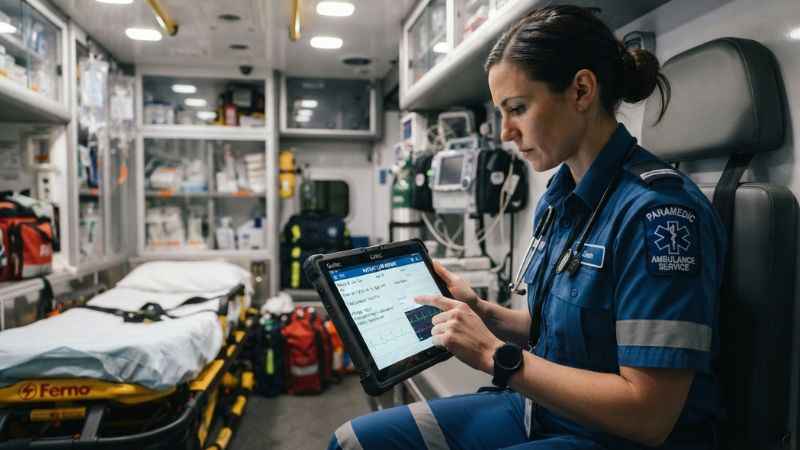
Crews can use the software on laptops, tablets, or mobile devices. The app can read data from cardiac monitors and dispatch systems.
ESO Fire RMS
ESO Fire RMS is a complete records management system for modern fire departments. It tracks structure fires, building inspections, hydrants, station tasks, and gear safety checks. Captains can quickly log crew actions and file state-compliant incident reports after every call.
ESO Health Data Exchange

This tool creates a secure bridge between EMS ambulances and hospital emergency rooms. Before the ambulance arrives, paramedics can send the patient chart straight to the hospital staff. Later, the hospital can share recovery updates back with the EMS agency so medics can review how their care helped the patient.
Scheduling and Personnel Management
Managing 24-hour shift schedules is tough work. ESO Scheduling supports staffing and scheduling workflows. Available features depend on the product and agency setup.
Billing and Revenue Tools
When a call ends, documentation moves to the billing team. Complete documentation can support accurate billing, but claim results vary by agency, payer, and record quality. This module captures clear billing codes and helps agencies recover service costs faster.
Insights and Analytics
Insights turns daily call data into easy charts. Fire chiefs and EMS directors can see call volume patterns, response times, and clinical trends across their entire service area.
How ESO Supports an EMS Workflow
To see how the platform works in real life, follow a patient chart from the start of an emergency call to the final review.
- Call Dispatch: Computer-Aided Dispatch (CAD) sends the call address, main complaint, and unit times directly into the field chart.
- Field Documentation: Paramedics enter patient vital signs, medical history, and treatments into the tablet interface.
- Device Integration: Heart monitors send EKG reports straight into the chart without manual typing.
- Hospital Handoff: Connected EMS agencies can send supported patient information to participating hospitals before arrival.
- Quality and Billing: Once the chart is signed, billing teams check the record while clinical managers review the care provided.
- State Reporting: ESO supports configured state and national reporting workflows. Requirements vary by product, state, and agency.
ESO for Fire Departments
Fire departments deal with complex safety rules, building checks, and equipment upkeep. ESO Fire RMS helps fire crews keep their operations organized across all stations.
- Incident Reporting: Firefighters can record structure fires, vehicle crashes, and hazardous material calls quickly.
- Property Inspections: Fire marshals use mobile devices to conduct pre-plan checks and code enforcement on local businesses.
- Asset Checklists: Crews log daily truck checks, oxygen tank levels, and hose inspections to keep gear ready for action.
- Hydrant Tracking: Firefighters map local water sources, record pressure tests, and flag broken hydrants for repair.
Integrations and Compliance Standards
Emergency software must talk to other systems seamlessly. ESO connects with many common public safety systems through secure cloud services.
Common System Connections
- Computer-Aided Dispatch (CAD): Fills in dispatch times, addresses, and call details.
- Cardiac Monitors: Imports patient heart rhythms, blood pressure, and pulse rates.
- Hospital EHR Systems: Shares clinical notes with supported hospital EHR systems.
- State Repositories: Uploads required records to state offices automatically.
Data Standards
The software supports key public safety reporting standards. EMS data aligns with NEMSIS (National EMS Information System) rules. ESO supports NERIS-related fire reporting workflows. Agencies should confirm current reporting requirements and product support.
ESO Suite Login Troubleshooting
If you cannot access your account, work through these simple troubleshooting steps before calling support.
[Login Issue]
   ├── Cannot Open Page? ──➔ Check URL & clear browser cache
   ├── Wrong Password?   ──➔ Use official reset link & check spam folder
   ├── MFA Code Failed?  ──➔ Sync phone clock & request a brand new code
   └── Module Missing?   ──➔ Contact your local agency administrator
If the Login Page Will Not Open
- Double-check that you typed your agency’s login URL correctly in your web browser.
- Try opening the page in a different web browser, like Google Chrome or Microsoft Edge.
- Clear your browser history and cache files.
- Confirm that your device is connected to a working Wi-Fi or cellular network.
If Your Password Does Not Work
- Click the official Forgot Password link on the login screen.
- Enter the username or other information requested by your assigned ESO login page.
- Check your email inbox and spam folder for the reset link.
- Do not click old reset links; always request a fresh link if the first one expires.
If MFA Security Codes Fail
- Make sure your smartphone clock is set to update time automatically.
- Wait 30 seconds and request a new text message or authenticator code.
- If you changed phone numbers, ask your local administrator to update your profile.
If a Product Module Is Missing
If you log in but cannot see your shift schedule or ePCR tools, your account may lack permission. Agency managers control permissions for each user. Ask your supervisor to check if your account has the correct role assigned.
When to Contact Support
Always contact your local agency administrator or IT department first. Your agency administrator may help with account, organization-code, and permission issues. You can also contact ESO Support.
ESO Suite Buyer and Implementation Checklist
If your agency is shopping for new emergency software, use this evaluation list to review your options.
- [ ] Module Needs: List which divisions need software (EMS, Fire, Billing, or Scheduling).
- [ ] Hardware Compatibility: Confirm that your current field tablets, laptops, and phones work with the software.
- [ ] System Integrations: Check if the software connects to your local CAD system and heart monitors.
- [ ] Offline Mode: Verify that field charts still save data when crews lose cell coverage in remote areas.
- [ ] User Roles: Ensure you can set clear access levels for firefighters, medics, chiefs, and billing staff.
- [ ] Reporting Needs: Make sure the system supports your state’s specific NEMSIS or fire reporting formats.
- [ ] Staff Training: Plan time for your team to take training courses before the software goes live.
Frequently Asked Questions
What is ESO Suite?
ESO offers separate products for patient care, fire records, scheduling, billing, data exchange, and analytics. Available products depend on the organization’s setup.
Where do I log in to ESO Suite?
You can log in using your agency’s official login link or via the ESO login portal at esosuite.net. Select the sign-in option and enter your details. Always double-check the web address before entering your password.
Is ESO Suite the same as ESO EHR?
No, ESO EHR is just one product inside the broader suite. ESO EHR handles electronic patient care reports for EMS crews, while the full suite includes fire reporting, scheduling, billing, and analytics modules.
Does ESO Suite have a mobile app?
ESO offers mobile access for some products, including a native iOS application for ESO EHR. Availability depends on the product, device, and agency setup.
How do I reset my ESO Suite password?
Go to your assigned sign-in page and click the Forgot Password link. Enter the requested account details to receive a password reset link in your inbox.
Does ESO Suite integrate with CAD systems?
Yes, ESO Suite connects with most major Computer-Aided Dispatch (CAD) systems. It pulls call times, location details, and call types directly into field records to reduce duplicate typing for first responders.
You May Also Like:
Thealitekeepsafe.com Explained: What It Is, Legitimacy, Content, Guest Posting & Safety Tips
What Is Glossywise Com? A Practical Guide to the Website

Joseph Quinn is the founder and editor of Punspa, a technology-focused website covering technology, website reviews, internet terms, and other things worth figuring out online. He writes and edits the site’s technology and web content, with a focus on clear, useful explanations. He also enjoys humor and wordplay, which occasionally leads him to write a pun-related article just for the fun of it.