Finding the best digital planners can change how you manage your day. Paper notebooks are nice, but digital tools let you move tasks, sync schedules, and fix mistakes instantly.
The right choice depends on how your brain works. Some people need a colorful notebook to write in by hand. Other people want a smart app that sends reminders or moves tasks when a meeting runs late.
Digital Planner Apps vs. PDF Templates: Which Do You Need?
To pick the right tool, you must understand the difference between the container and the paper.
The app is the container, or the software that runs on your device. The template is the paper, or the digital file you look at and write on.
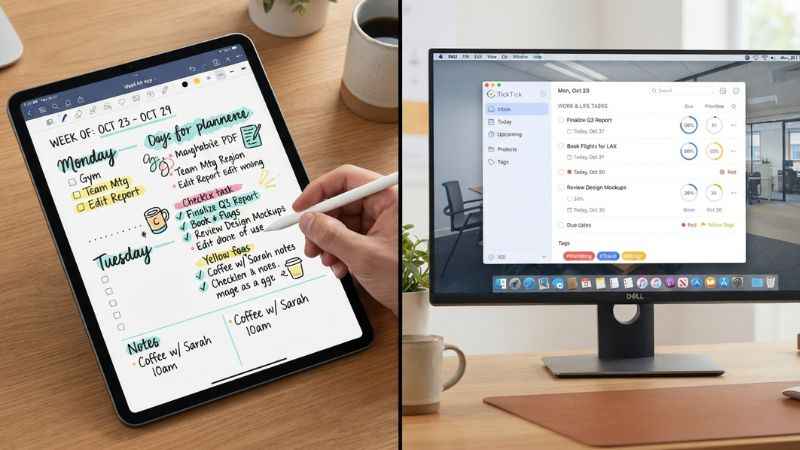
Apps vs. Templates Comparison
| Feature | Digital Planner Apps | PDF Planner Templates |
| Best For | Typing, automation, and quick alerts | Handwriting, drawing, and creativity |
| Cost | Often a monthly fee or one-time buy | One-time cost to buy the file |
| Syncing | Syncs easily across your phone and laptop | Stays inside your note app |
| Reminders | Sends pop-up alerts for tasks | Relies on you to check the page |
Your Decision Matrix
- Choose an app if: You want your phone to buzz when it is time for a meeting. You also want a system that sorts your tasks for you.
- Choose a template if: You love the feel of writing with a pen. You want a pretty notebook page that looks just like a real paper planner.
Best Digital Planner Apps (Software Solutions)
Best for Handwriting and Creativity: GoodNotes and Notability
GoodNotes and Notability let you write with a digital pen on your tablet. They feel just like paper.
They feature low stylus latency, which means the ink appears on the screen almost instantly when your pen touches it. You can also use layer tools to draw over pictures and audio sync to record a meeting while you take notes.
These apps work best on iOS and Mac devices like the iPad. If you use an Android tablet, try Noteshelf as a great alternative.
Best for Task Management and Automation: TickTick and Todoist
TickTick and Todoist help you track daily to-do lists. They use smart typing features to spot dates and set reminders for you.
TickTick has a more complete built-in calendar. It shows all tasks in one view. Todoist has a calendar too, but it is only for paid users and shows one project at a time.
Best for Custom Workspaces: Notion
Notion lets you build your own digital workspace from scratch. You can make databases, trackers, and notes that fit your exact needs.
It has a steep learning curve because you build everything yourself. It works best for project managers and people who love to design custom pages.
Best for AI-Powered Auto-Schedulers: Motion and Lifestack
Motion and Lifestack use smart artificial intelligence to plan your day. If a meeting runs late, the AI automatically shifts your other tasks to new time slots.
This magic saves you from having to rewrite your entire schedule by hand. AI tools change fast, so look for regular updates to keep your setup working smoothly.
Best Free Digital Planners
You do not need to spend money to get organized. Google Calendar, Microsoft To Do, and Apple Notes offer powerful free tools.
Google Calendar handles your appointments. Microsoft To Do tracks your daily tasks. Apple Notes works well for quick ideas and lists.
Best Hyperlinked PDF Planner Templates (For GoodNotes/Notability)
PDF planners are digital notebooks with clickable tabs. You need a note app like GoodNotes or Notability to open them.
Best All-in-One Life Planners
Passion Planner and onPlanners make some of the most popular PDF templates. They feature hyperlinked tabs that let you jump from month to month with one tap.
Many of these templates come in undated options so you can start using them at any time of the year.
Best for ADHD and Neurodivergent Brains
If you have ADHD, look for low-stimulus designs with soft colors that do not overwhelm your eyes. Planners with dedicated brain dump sections help you clear your head.
Simple layouts keep you from getting distracted by too many features.
Best for Students and Teachers
Student and teacher templates help you stay on top of the school year. They include lesson planning grids, grade tracking sheets, and assignment logs.
These pages keep your homework, tests, and club meetings in one neat digital binder.
Where to Find Free and Paid Templates
You can buy digital templates on Etsy, Gumroad, and independent creator websites. Support small creators when you want unique art styles.
Always check file compatibility before you buy. Make sure the template matches your screen size, such as A4 or US Letter, and offers light or dark mode options.
How Choosing the Right Digital Planner Works for Your Device
iPad and Apple Pencil Users
iPad users enjoy a strong ecosystem with apps like GoodNotes and Notability. The Apple Pencil works smoothly with these apps for natural handwriting.
Android Tablet and S-Pen Users
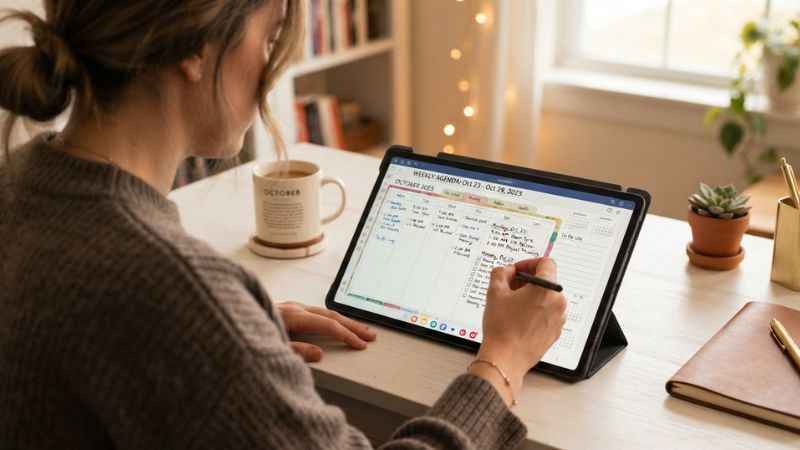
Android users have great options too. Samsung Notes offers fast pen response on Galaxy tablets. Noteshelf is great for writing notes on Android. Xodo is good for reading and marking up PDF planners.
Desktop and Laptop Users
If you work on a computer all day, use a keyboard-first planner. Notion and ClickUp let you type fast and manage large projects without a tablet.
Common Digital Planning Mistakes (And How to Fix Them)
- Mistake 1: Over-customizing. Spending more hours decorating your planner than actually doing your work wastes time.
- Mistake 2: App hopping. Switching to a new app every month stops you from building good habits. Stick with one tool for at least a month.
- Mistake 3: Ignoring sync. Turning off cloud backup can cause you to lose all your notes if your device breaks.
The Fix: Use the Minimum Viable Planner concept. Start with just a calendar and a simple task list. Add fun stickers and extra pages only after your basic routine works.
FAQ: People Also Ask About Digital Planners
Are digital planners worth the cost?
Yes, if you use them every day. Free apps work fine for basic tasks, while paid templates offer pretty designs that keep you motivated.
Can I use a digital planner on my phone?
Yes, most apps and PDF planners sync to your phone. However, typing or writing is usually easier on a tablet or computer.
How do I import a PDF into GoodNotes?
Open GoodNotes, tap the plus sign to create a new notebook, and select import. Choose your downloaded PDF file from your device storage.
Do digital planners help with ADHD?
Apps like TickTick help with ADHD because they send reminders. PDF planners help because you can move tasks easily without mess.
Can I print my digital planner pages?
Most digital templates are made for screens. If you want to print them out, look for templates sized specifically for regular paper.
Final Verdict: Build Your Perfect Planning Ecosystem
You do not need to use just one app for everything. The best setup is a simple stack of tools that work together.
For example, use Google Calendar for hard deadlines, TickTick for daily chores, and GoodNotes for meeting notes and journaling.
Ready to get organized? Pick one free app or download a free template today to test your new planning system.
You May Also Like:
TheJavaSea.me Leaks AIO-TLP370: What It Is, Risks, and How to Stay Safe
ESO Suite: Login, Features, Products, and EMS Software Explained

Joseph Quinn is the founder and editor of Punspa, a technology-focused website covering technology, website reviews, internet terms, and other things worth figuring out online. He writes and edits the site’s technology and web content, with a focus on clear, useful explanations. He also enjoys humor and wordplay, which occasionally leads him to write a pun-related article just for the fun of it.